NxtGen Tracking records time, activity levels and screenshots from your team's computers, then turns them into a clear dashboard and ready-made timesheets. We set it up for you.
Your whole team in one place. Office, estimating, dispatch and site staff, each with one button.
Set up for you
Month to month or yearly
Windows 10 and 11
Kate clocked in7:42 am today
Team hours this week
212.8h+6%
MTWTFSS
Working now5 of 7
Kate RobertsonMicrosoft Excel82%
Daniel SharmaBluebeam Revu67%
Jess McKenzieGoogle Chrome74%
1
button for staff: clock in, clock out
10min
blocks, each with its own activity level
2min
to install on each staff computer
0
keystrokes recorded. Counts only, never what is typed
The dashboard
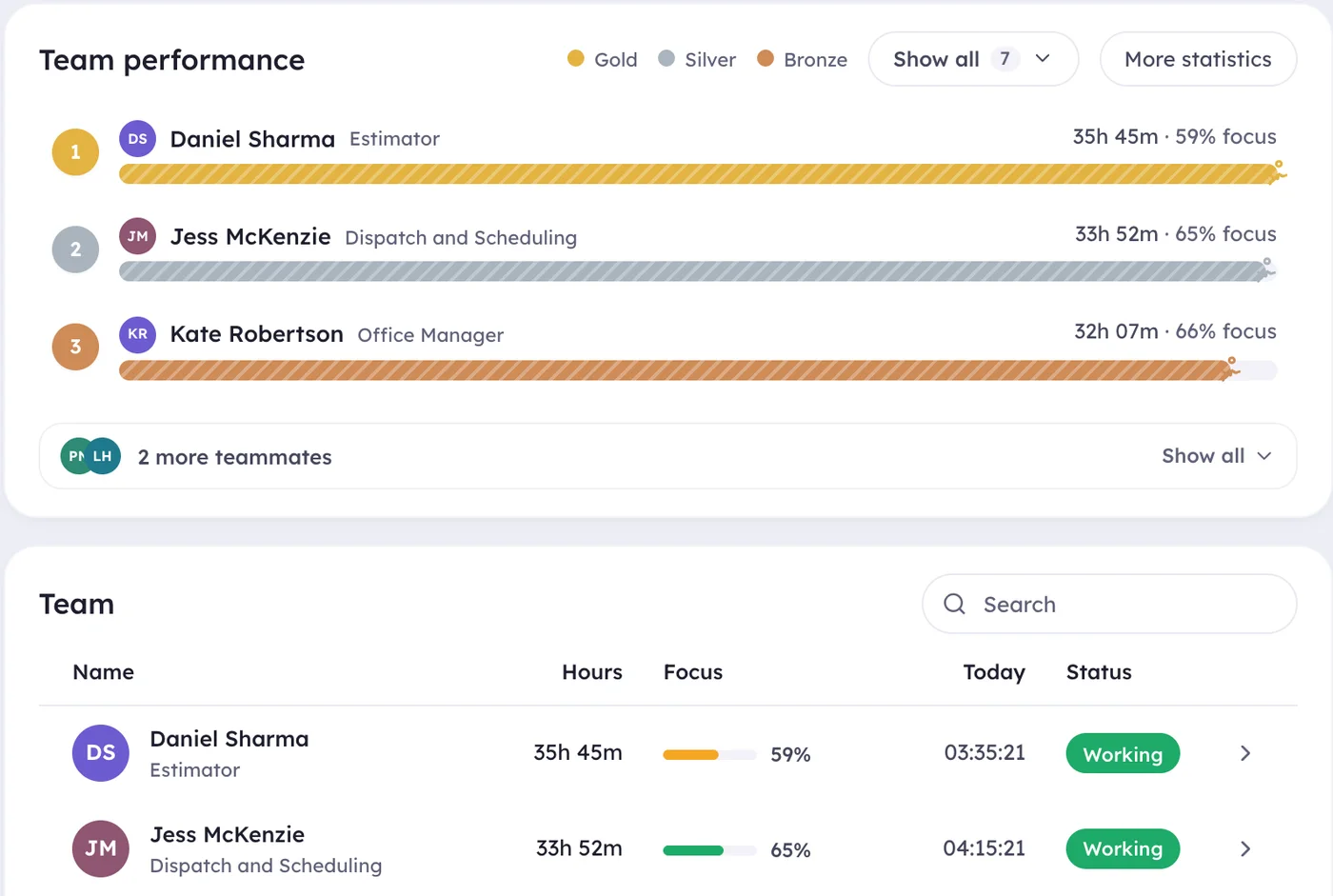
The whole team on one screen
Who is working, how the week is going and who might need a hand. Open it on any computer, tablet or phone.
Dashboard
Features
Everything you need to see the work day clearly
No spreadsheets to chase and no guessing. One dashboard shows who worked, when, and on what.
See who is working right now
Open the dashboard and you know straight away who is on the clock, which app they are in and how the week is tracking against normal hours.
Live list of staff who are working, idle or finished
Hours and activity for today, this week or any dates you pick
Clock out someone who forgot, straight from the dashboard
Screenshots and activity that show the real picture
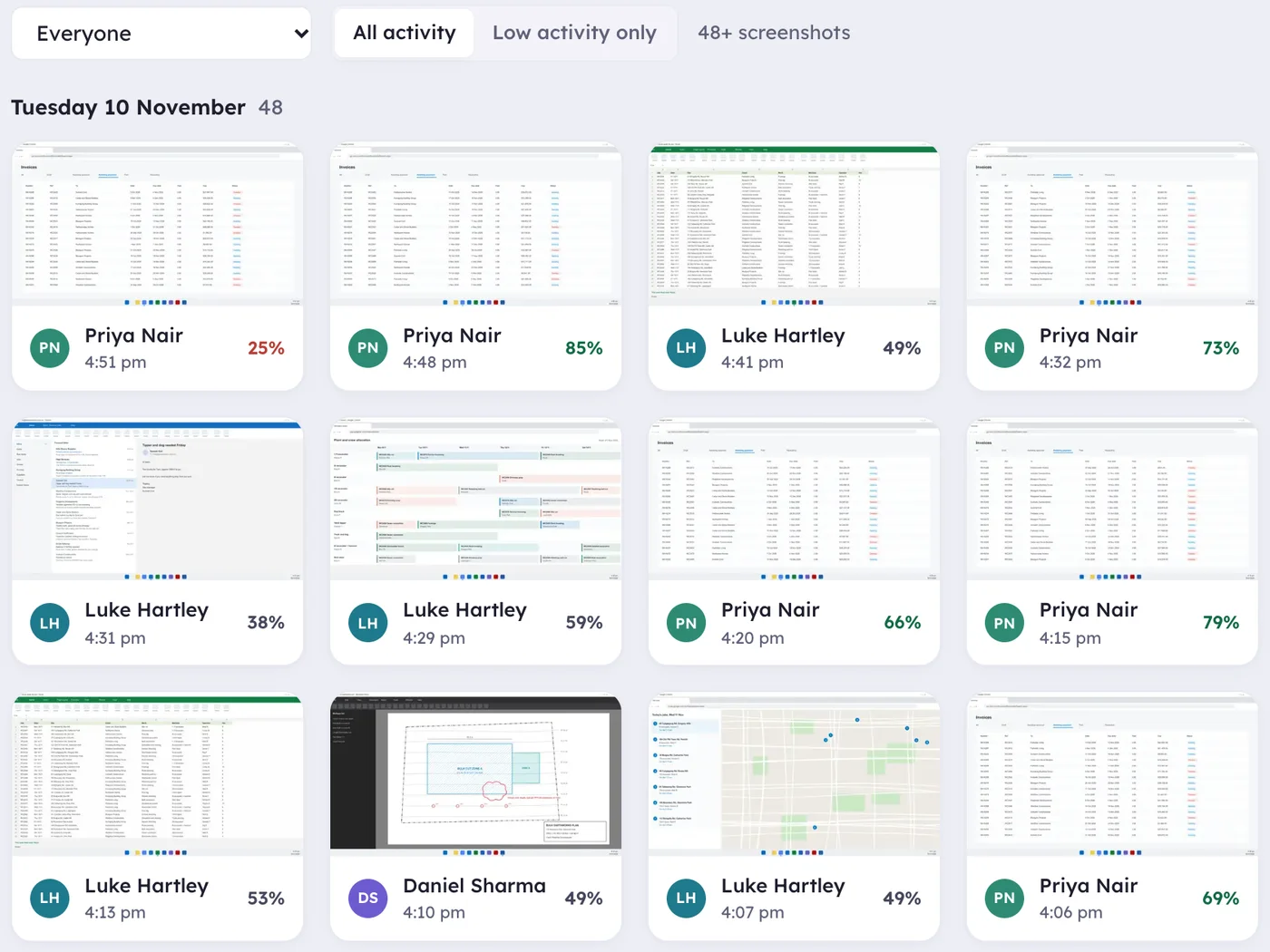
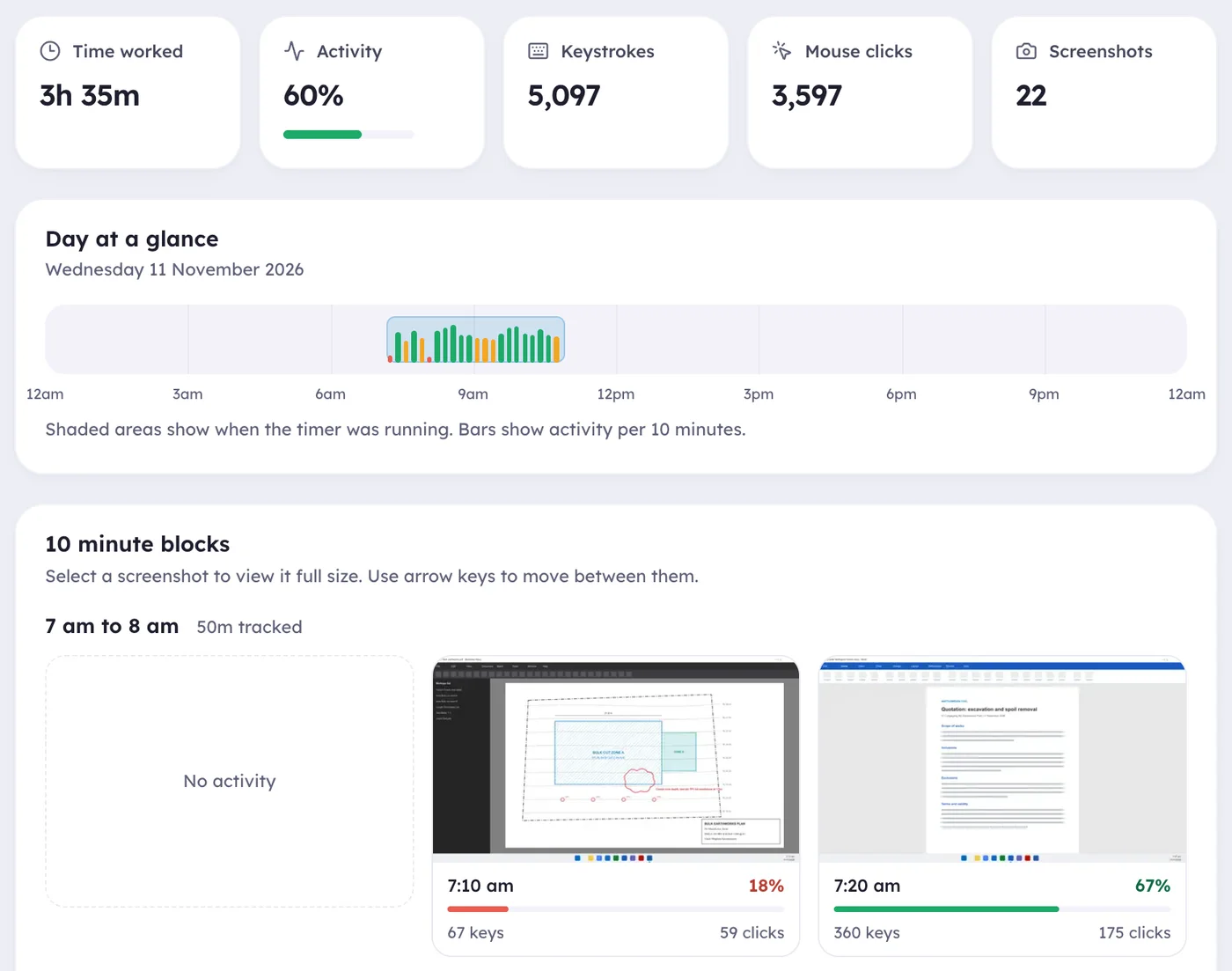
A screenshot is taken at a random moment in each interval you set, and every one carries its activity level. Quiet patches and busy patches are easy to spot.
Choose how often: from every minute to once an hour
Optional blur so details stay private
Works with two or more monitors
A clear timeline of every day
Click any staff member to see their day in ten minute blocks: when they started, when they took a break, which apps they used and how active each block was.
Start, finish and breaks at a glance
Time spent in each app, such as Excel or Outlook
Trends over weeks and months
Timesheets that fill themselves in
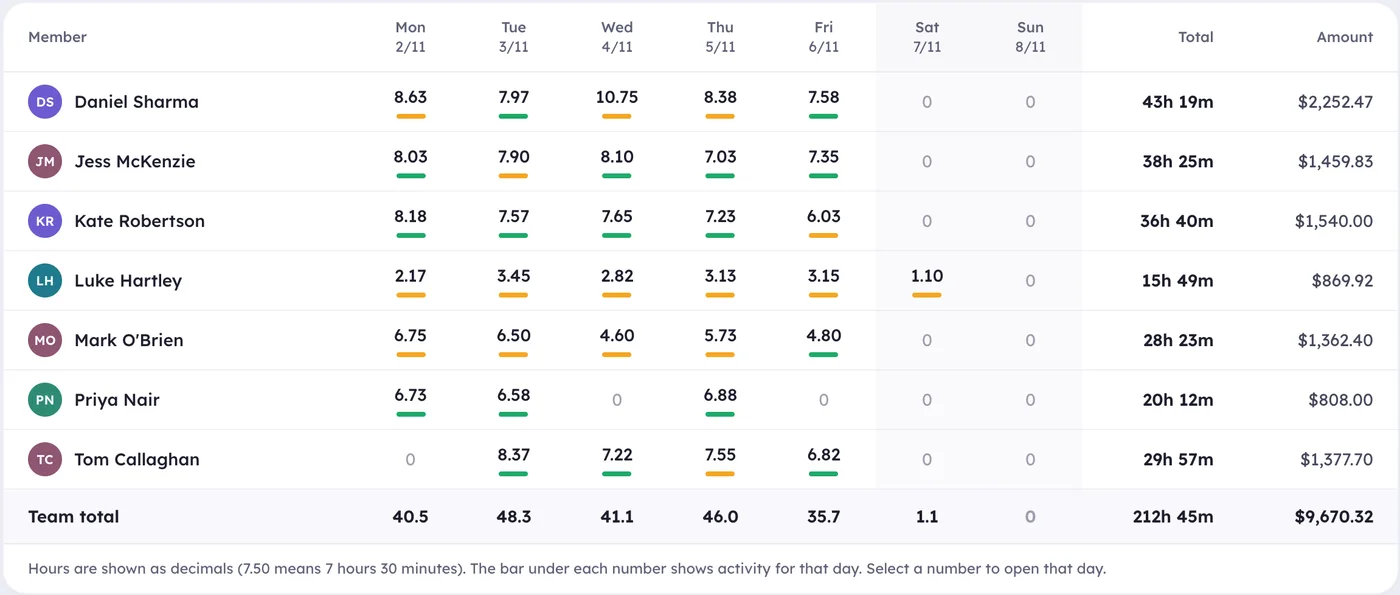
Hours for the week are added up for every staff member, Monday to Sunday, in your time zone. Export them in one click when it is time to run payroll.
Hours and wage cost for each person, every week
CSV export that opens in Excel
Staff can check their own hours any time
The desktop app
One button for staff. Nothing to learn.
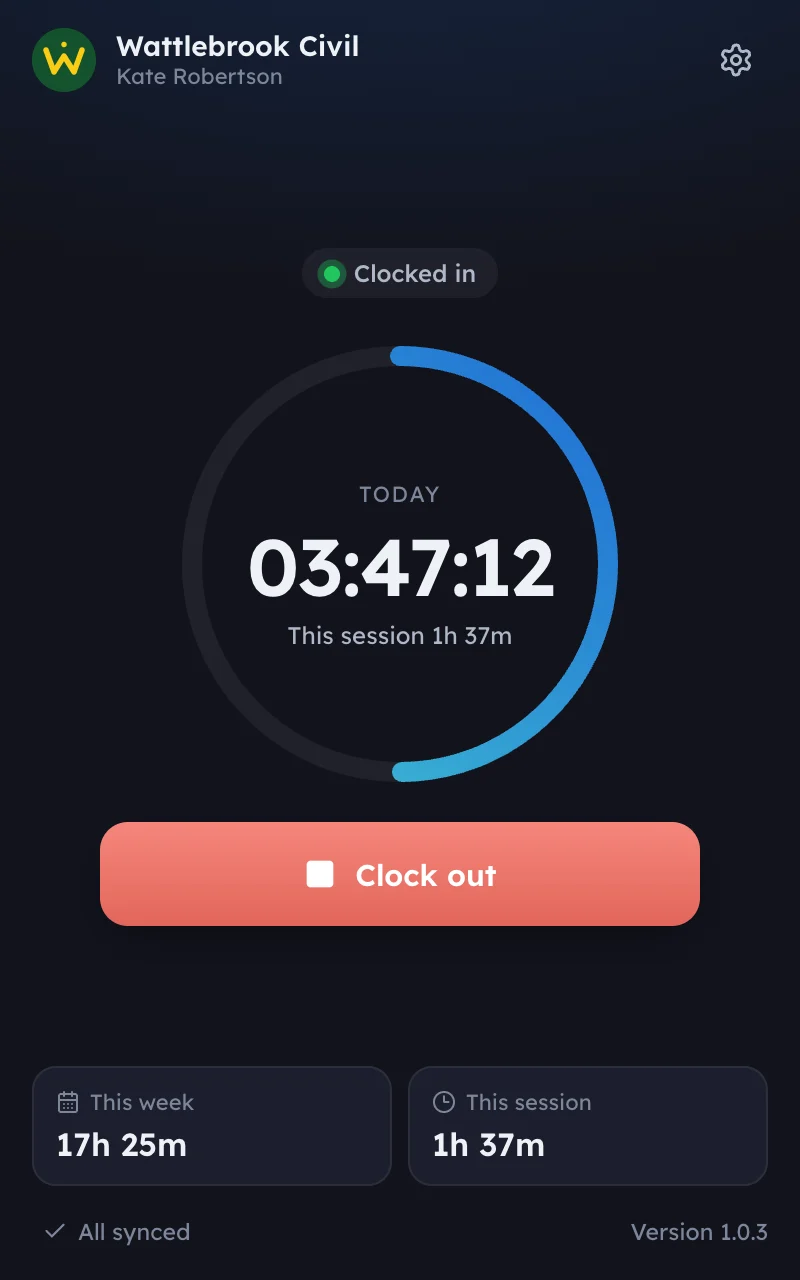
Your team gets a small Windows app with your business name and logo on it. They clock in when they start and clock out when they finish. Everything else happens by itself.
Fair about breaks
If someone steps away, the app asks whether to keep or remove that time when they come back.
Works without internet
Time is saved on the computer and sent when the connection returns. Nothing is lost.
Updates itself
New versions install in the background, so everyone always has the latest improvements.
Built in
The details are already handled
Real work days are messy. NxtGen Tracking deals with the awkward cases so your numbers stay right.
Idle time never sneaks in
After a few minutes with no keyboard or mouse use, the app flags the time as idle. If nobody answers for an hour, it clocks them out at the moment they left.
Lock or sleep stops the clock
When a computer is locked, asleep or shut down, the person is clocked out, so only real work time is counted.
Your brand on it
The dashboard and the app carry your business name and logo, so it feels like your own system.
The right access for each person
Owners and managers see the team. Staff only see their own time.
Apps used
See how the day was split between programs like Excel, Outlook and Chrome.
Made for how Australia works
Your own time zone including daylight saving, weeks that start on Monday, and dates written the Australian way.
How it works
Up and running in three steps
1
We set up your workspace
Tell us your business name and who is on the team. We create your private dashboard with your logo and staff logins.
2
Staff install the app
Each person downloads the Windows app from your dashboard, signs in and clocks in. It takes about two minutes.
3
You see the work day
Hours, activity and screenshots appear on your dashboard as the day goes on. Timesheets are ready at the end of the week.
Staff privacy
Upfront with your team, by design
Tracking works best when everyone knows what is recorded. Staff clock in and out themselves, and no time, activity or screenshots are recorded while they are clocked out.
What is recorded
Clock in and clock out times
How many key presses and mouse clicks, as a count only
The name of the app in use, such as Excel
Screenshots at the interval you choose, if you turn them on
What is never recorded
What anyone types. No keystrokes, no passwords
Window titles, web addresses or document names
Webcam, microphone or location
Any time, activity or screenshots while clocked out
Workplace monitoring rules differ between states and territories. In New South Wales and the ACT, for example, employers must give staff written notice before monitoring starts. Ask us and we will talk you through introducing tracking to your team. This is general information, not legal advice.
Pricing
Simple pricing, per staff member
One plan with every feature. Pay month to month, or pay for a year and save.
Something else on your mind? Ask us and a person will reply.
Which computers does it work on?
The staff app runs on Windows 10 and Windows 11. The dashboard works in any modern browser on a computer, tablet or phone. If your team uses Macs, tell us when you get in touch and we will let you know where that is up to.
Do staff know when they are being tracked?
Yes. Staff clock in and out themselves, and the app shows clearly when they are clocked in. You can also turn on a small notice each time a screenshot is taken. No time, activity or screenshots are recorded while they are clocked out.
Does it record what people type?
No. It counts how many key presses and mouse clicks happen so it can work out an activity level. It never records which keys were pressed, so passwords and messages are never captured.
How often are screenshots taken, and can we turn them off?
You choose the interval, and the app picks a random moment inside each one. You can blur screenshots, set how long they are kept, delete individual ones, or turn screenshots off completely and just track time and activity.
What happens if the internet drops out?
The app keeps tracking and saves everything on the computer. When the connection comes back it sends it all to your dashboard. If the computer crashes, the person is clocked out at the last saved moment.
What about breaks and time away from the desk?
After a few minutes without keyboard or mouse use, the app marks the time as idle. When the person returns they choose to keep it, for example after a phone call, or remove it. You decide how many minutes counts as idle.
Is our data kept separate from other businesses?
Yes. Each business gets its own private workspace with its own database. Connections are encrypted, passwords are stored hashed, and only the people you give a login to can see your team's data.
How long does it take to get started?
Send us your details and we will be in touch within one business day. Once your workspace is ready, each staff member needs about two minutes to install the app and sign in.
Is there a lock-in contract?
No. You can pay month to month and stop when you like, or choose a year of access at a lower rate.
Ready to see where the hours go?
Tell us about your team and we will have you set up within days, not weeks.